Home • Help • Administrator Tools
Tag Management
The Tag Management section allows administrators to create and manage tags that can be applied to work orders. Tags provide a flexible way to categorize, prioritize, and organize work orders with customizable color-coding.
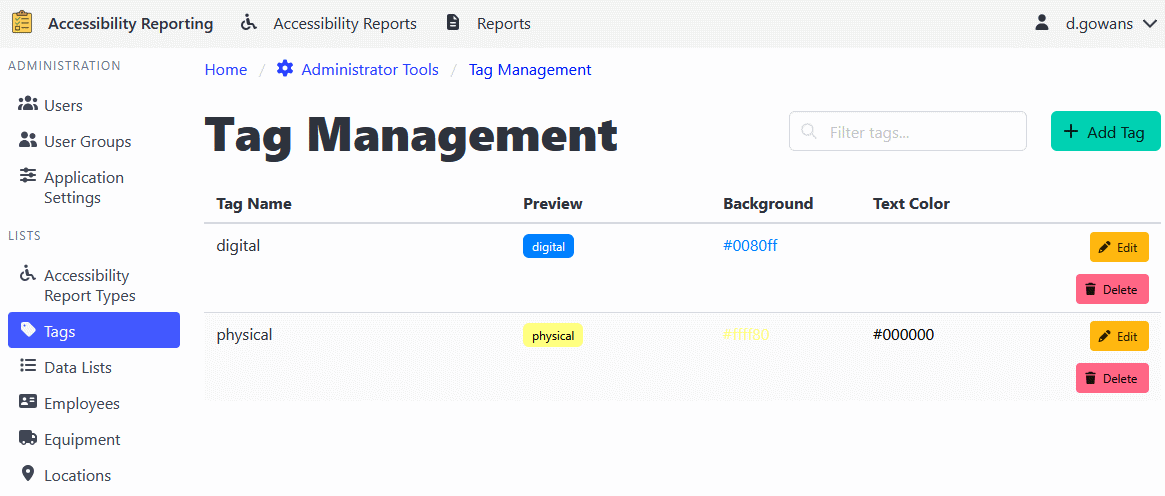
Adding a Tag
Adding a New Tag
- Navigate to Administrator Tools > Tags.
- Click the Add Tag button.
- Enter tag information:
- Tag Name: A descriptive name for the tag (e.g., “Priority”, “In Progress”, “Urgent”)
- Background Color: Choose a background color for the tag
- Text Color: Choose a text color for optimal readability
- Click Add Tag to create the tag.
Adding a Tag from Work Order
Work orders can have tags applied to them directly, even if those tags don’t exist in the Tag Management system. These “ad-hoc” tags will display with default styling instead of custom colors. The Add Tag from Work Order feature allows you to easily promote these ad-hoc tags to system tags with custom colors.
- Navigate to Administrator Tools > Tags.
- Click the Add Tag from Work Order button.
- A modal will display showing all tags that are used on work orders but don’t have system records, along with their usage count.
- Click the Add button next to the tag you want to promote.
- A new modal will open with the tag name pre-filled. Choose colors:
- Background Color: Choose a background color for the tag
- Text Color: Choose a text color for optimal readability
- Click Add Tag to create the system record.
Once added, all existing work orders using that tag will automatically display with the new custom colors.
Editing Tags
- Navigate to Administrator Tools > Tags.
- Find the tag you want to edit.
- Click the Edit button.
- Update the colors as needed (tag name cannot be changed after creation).
- Click Save Changes to apply the updates.
Deleting Tags
- Navigate to Administrator Tools > Tags.
- Find the tag you want to delete.
- Click the Delete button.
- Confirm the deletion.
⚠️ Note: Deleting a tag will not remove it from existing work orders that use it, but those tags will display with default styling instead of the configured colors.
Using Tags on Work Orders
Tags created in the Tag Management interface can be applied to work orders:
- Open a work order in edit mode.
- Navigate to the Tags tab.
- Click Add Tag to add a new tag.
- Enter the tag name.
- If the tag exists in the Tag Management system, it will display with the configured colors. Otherwise, it will display with default styling.
Tag Display
- System Tags: Tags that exist in the Tag Management interface display with their configured background and text colors.
- Ad-hoc Tags: Tags that don’t exist in the system display with default styling.
Tag Aliases
Tag aliases map one tag value to another when users add tags to work orders. When an alias is entered, ShiftLog stores the mapped tag instead.
- Navigate to Administrator Tools > Tags.
- Open the Tag Aliases tab.
- Click Add Tag Alias.
- Enter:
- Alias: The value users may type.
- Related Tag: The tag that should be stored.
- Save the alias.
The related tag does not need to exist in the Tags tab.
Best Practices
Tag Naming Best Practices
- Use clear, descriptive names that convey meaning at a glance.
- Maintain consistent naming conventions across tags.
- Avoid overly long tag names for better visual presentation.
Color Selection Best Practices
- Choose colors that provide good contrast for readability.
- Use consistent color schemes (e.g., red for urgent, yellow for in-progress).
- Ensure text color is readable against the background color.
- Consider color-blind accessibility when selecting colors.
Tag Management Best Practices
- Create a core set of commonly used tags for your organization.
- Avoid creating too many tags, which can reduce their effectiveness.
- Periodically review and remove unused tags.
- Document the meaning and usage of each tag for your team.