Home • Help • Administrator Tools
Employee List Management
The Employee List Management section allows administrators to create and maintain predefined lists of employees. These lists can be quickly selected when recording shift activities or timesheets, making data entry faster and more consistent.
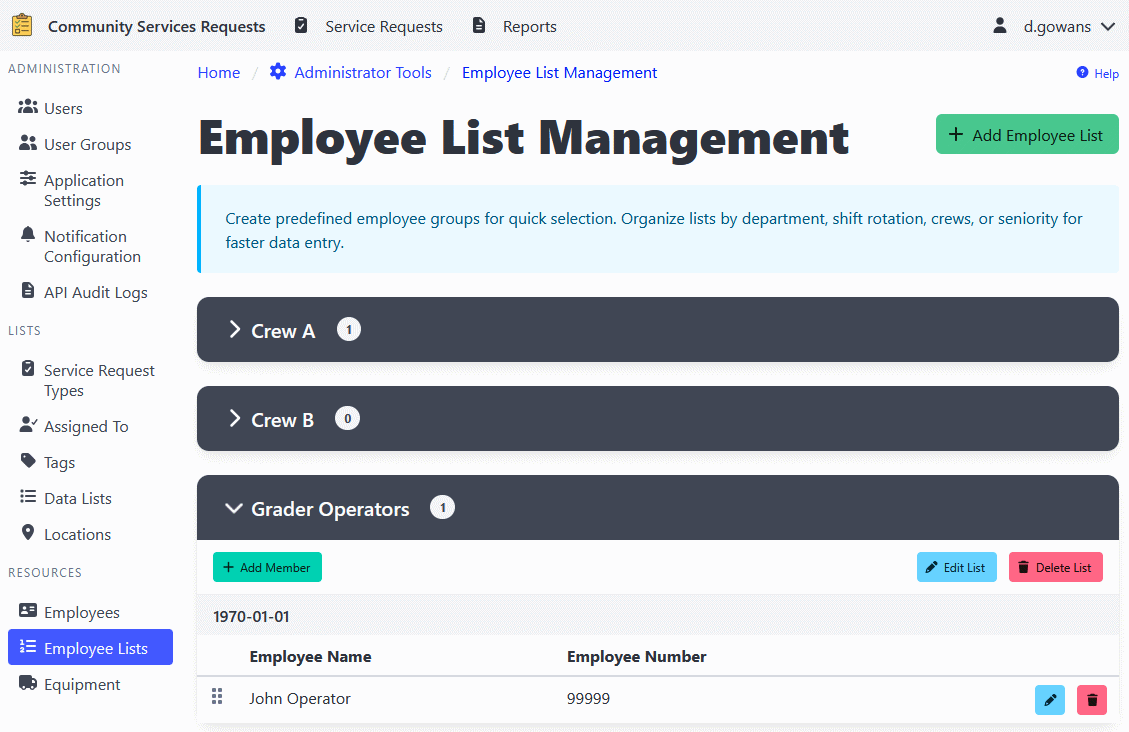
Overview
Employee lists are useful for:
- Recurring shifts - Save frequently-used employee groups
- Department teams - Maintain lists for each department
- Rotation schedules - Manage different shift rotations
- Project teams - Track employees working on specific projects
Adding an Employee List
- Navigate to Administrator Tools > Employee Lists.
- Click the Add Employee List button.
- Enter a descriptive name for the list (e.g., “Night Shift Crew”, “Roads Department”, “Weekend Team”).
- Select employees to include in the list.
- Optionally, select a User Group to restrict visibility to specific users.
- Click Save to create the list.
Editing an Employee List
- Navigate to Administrator Tools > Employee Lists.
- Find the list you want to edit.
- Click the Edit button.
- Update the list name, employees, or user group restriction as needed.
- Click Save to apply changes.
Managing Employees in a List
Adding Employees
- Open the employee list for editing.
- Select additional employees from the available employees list.
- Use the drag-and-drop interface to reorder employees if needed.
- Click Save to apply changes.
Removing Employees
- Open the employee list for editing.
- Click the Remove button next to the employee you want to remove.
- Click Save to apply changes.
Reordering Employees
The order of employees in a list can be customized:
- Open the employee list for editing.
- Use the drag-and-drop handle (grip icon) to reorder employees.
- Click Save to apply the new order.
Deleting an Employee List
- Navigate to Administrator Tools > Employee Lists.
- Find the list you want to delete.
- Click the Delete button.
- Confirm the deletion.
⚠️ Note: Deleting an employee list will not affect existing shift or timesheet records. It only removes the list template for future use.
User Group Restrictions
You can restrict the visibility of employee lists to specific user groups. When a user group is assigned to a list:
- Only users in that group will see the list when recording shifts or timesheets
- All administrators can see all lists regardless of user group
- This helps keep lists organized and relevant to each user’s role
Using Employee Lists
Once created, employee lists appear:
- In the shift recording interface as quick-select options
- In the timesheet entry interface for batch entry
- As shortcuts for adding multiple employees at once